Origin
Thank you, Microsoft.
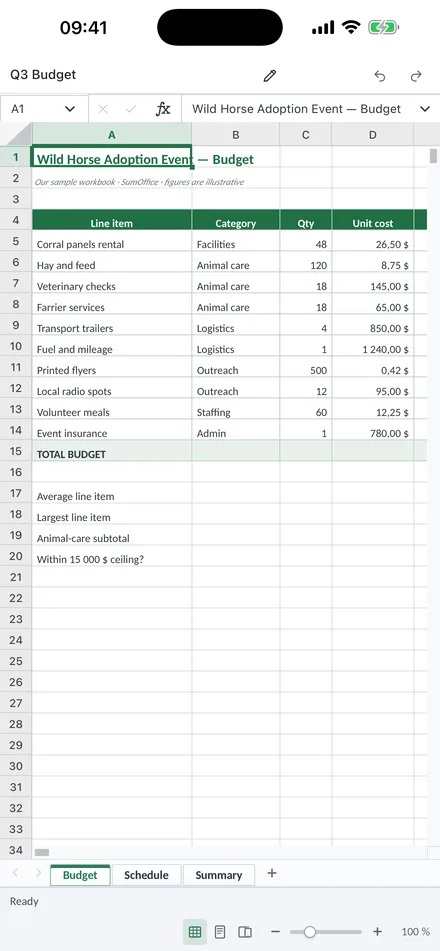
Word and Excel turned documents into a shared language across whole industries; COM, VBA, XLL and Office.js made it extensible. We even named ourselves after their finest lesson — the first formula anyone ever learns. We're not crossing that work out. We're carrying it where their product can't go by its very nature: inside someone else's application, on a server, in an unattended process.
Thank you, Apple, too. In the 1990s OpenDoc set out to build a document from live, interchangeable parts — a page that was really a small application assembled from components. The direction was right; the decade was not ready for it: every part had to be written by hand, in advance, and the project was shelved in 1997. What has become possible since is the half that was missing — parts that no one has to pre-write, because an engine can read what a file is made of and an agent can build the missing piece on demand. That idea is part of what we ship today.
=SUM(forty years of office software, one native engine, every place you work)
You used to embed your system into Excel. Now the Excel class of capability embeds into yours.
Why we are building it, where we start, and what we refuse to compromise — Why SumOffice. In one line: the market already has enough crap software; we don’t need to make more of it.
SumOffice is an independent product, not affiliated with or endorsed by Microsoft or Apple. Microsoft, Excel, Word, VBA, Power Query, Apple and OpenDoc are trademarks of their respective owners.